
Decoding the USB Battery Icon: What That Tiny Symbol Means for Modern Devices

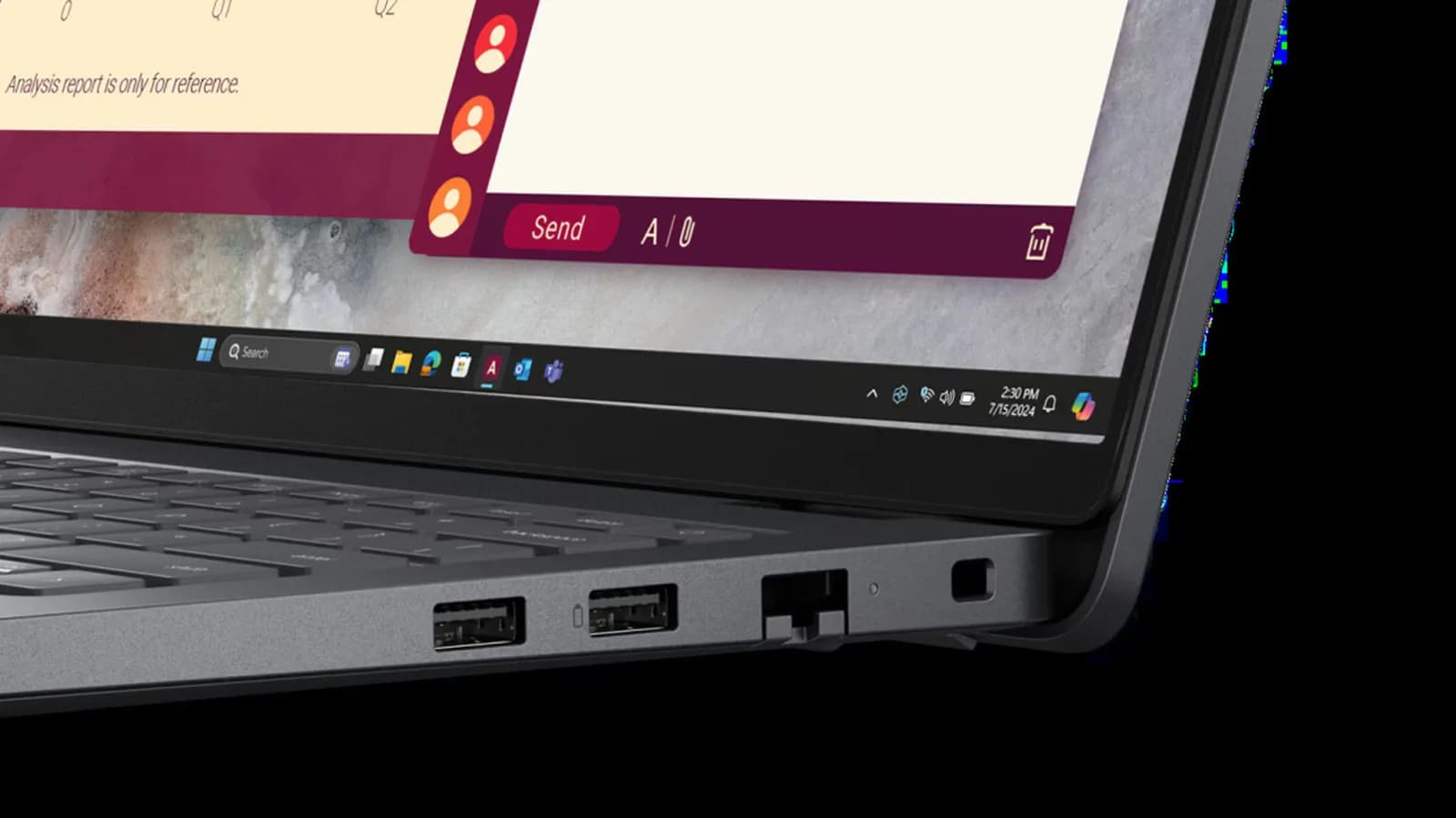
Demystifying the Peripheral Power Symbols
Modern computing hardware is packed with subtle indicators designed to guide users through an increasingly complex web of connectivity standards. Among the most common yet frequently misunderstood markings is the tiny battery silhouette stamped adjacent to specific Universal Serial Bus ports. While many users overlook these minimalist glyphs, they serve as critical signposts for advanced electrical capabilities that distinguish a standard data pipeline from a dedicated power delivery zone.
As laptops, tablets, and peripherals have evolved to demand vastly different electrical profiles, hardware designers needed a way to visually communicate which ports could handle heavier loads. The standard USB trident logo simply tells you the interface protocol, but the addition of a battery icon bridges the gap between raw data transfer and robust power management. Understanding this distinction can dramatically alter how you charge your daily carry and interact with your workstation.
The Core Meaning: Always-On Power and Sleep Charging
At its most fundamental level, the presence of a battery symbol next to a USB port typically denotes an 'always-on' or 'sleep-and-charge' functionality. On a traditional laptop, cutting power to the motherboard usually shuts down current flow to the external ports to conserve battery life. However, ports designated with the battery icon are often hardwired directly to the power rail or managed by an auxiliary circuit that remains active even when the host system is asleep, hibernating, or entirely powered down.
This capability transforms your dormant laptop into an overnight charging station for smartphones, smartwatches, or wireless headphones without requiring you to leave the entire operating system running. For mobile professionals and travelers, this feature eliminates the need to carry multiple wall adapters, allowing a closed clamshell computer to act as a high-capacity power bank fueled by its internal lithium-ion pack.
Accelerated Amperage and Fast-Charging Protocols
Beyond convenience during system downtime, the battery glyph frequently signals support for elevated current delivery and fast-charging standards. Standard USB ports on older or budget machines often cap their output at modest levels, resulting in agonizingly slow charge times for modern gadgets with large capacities. A port marked with a battery icon is usually engineered to push higher amperages or interface with dynamic voltage scaling protocols, enabling rapid replenishment of connected batteries.
Under the hood, these ports often integrate with proprietary or industry-standard fast-charging negotiations, communicating with the connected device to safely ramp up power delivery. Whether it is stepping up voltage to push more energy through the cable or leveraging the capabilities of modern USB Power Delivery (USB-PD) architectures, the battery icon serves as an immediate visual queue that this specific port is optimized for power transmission rather than just tethering a mouse or keyboard.
Bi-Directional Power and Advanced Port Capabilities
In the era of modern USB-C interfaces, the battery icon takes on an even more sophisticated meaning, sometimes alluding to advanced power-sharing capabilities or bi-directional flow. Because USB-C can simultaneously handle high-speed data, display output, and substantial electrical current in either direction, advanced hardware implementations use subtle icons to denote ports capable of acting as both power sinks and power sources depending on the connected peripheral.
This flexibility is essential for modern developer workstations and ultra-thin laptops where a single cable might power the host computer from an external monitor while simultaneously driving peripheral devices attached to a downstream hub. Recognizing these specialized ports ensures you plug your high-draw equipment into the optimal interface, preventing bottlenecks where a device draws more power than a standard port can safely supply.
Hardware Design Choices and Developer Implications
For hardware engineers and systems architects, deciding which USB ports receive the battery designation involves careful consideration of thermal dissipation, trace routing, and power budget allocation on the printed circuit board. Delivering higher currents continuously generates heat, requiring robust power management integrated circuits (PMICs) and adequate copper plating around the port to prevent thermal degradation over time.
Software developers and firmware engineers also play a crucial role in managing these ports, writing low-level routines that govern sleep states, power states, and over-current protection protocols. When a system enters a low-power mode, the firmware must carefully isolate the sleep-and-charge port to ensure it drains the primary battery safely without triggering low-voltage shutdowns that could corrupt system state data stored in memory.
Best Practices for Peripheral Management
Maximizing the utility of these specialized ports comes down to matching your hardware's needs with the correct physical interface. Always consult your device documentation to understand whether a battery-icon port requires specific BIOS or utility software to enable sleep-charging functionality, as some manufacturers disable the feature by default to preserve maximum battery health.
By paying attention to these small physical cues, you can optimize your desk setup for maximum efficiency—reserving standard ports for stable data peripherals like flash drives and MIDI controllers, while routing your power-hungry mobile devices directly to the designated rapid-charge zones.
Closing Thoughts
The humble battery symbol next to a USB port is a prime example of thoughtful hardware design, offering an intuitive hint about complex electrical engineering happening beneath the chassis. By understanding what these icons represent, users can make smarter choices about power management, streamlining their charging routines and protecting their valuable electronics from inefficient power delivery.
Source: engadget.com