
Reclaiming Your Windows Drive: A Modern Developer's Guide to Disk Space Management

The Silent Creep of Storage Bloat on Modern Workstations
For modern developers, power users, and digital professionals, running out of disk space is an inevitable rite of passage. Between massive integrated development environments, bloated software containers, local database caches, and high-resolution assets, a pristine one-terabyte solid-state drive can fill up surprisingly fast. Windows operating systems are notorious for accumulating invisible digital debris over time. Temporary files, leftover installation caches, and forgotten virtual machines silently chip away at available capacity until the system begins to stutter and throw critical low-memory warnings.
Managing this storage crisis requires more than just hastily deleting random folders out of frustration. A systematic, methodical approach is necessary to identify true storage hogs without risking system stability. By understanding how Windows handles disk space allocation and leveraging the right auditing tools, you can not only reclaim gigabytes of lost territory but also establish sustainable maintenance habits that keep your development machine running at peak performance.
Leveraging Native Windows Storage Settings
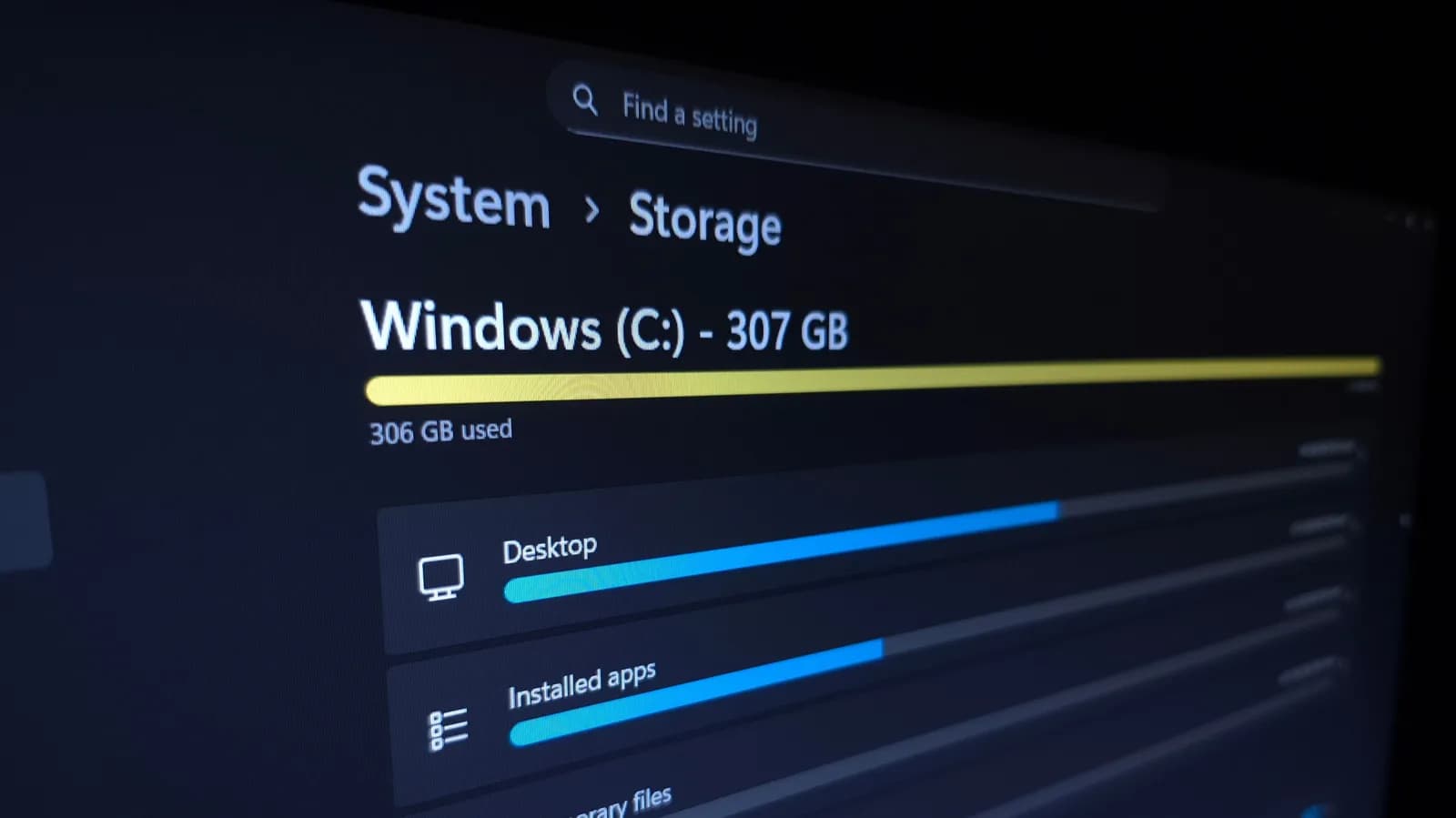
Long gone are the days when Windows users had to rely entirely on obscure third-party command-line utilities or sketchy freeware to inspect their hard drives. Modern versions of Windows feature a robust, centralized Storage Settings interface that provides an immediate, high-level breakdown of where your gigabytes are going. This graphical utility categorizes your files into intuitive buckets such as apps and features, temporary files, documents, and offline maps, offering a clear visual map of your storage consumption.
Drilling down into these categories reveals surprising culprits. For instance, the temporary files section often harbors gigabytes of residual Windows Update packages, previous installation backups, and DirectX shader caches that serve no active purpose. Using the built-in cleanup routines within this menu allows you to safely purge these redundant assets without digging through system directories or worrying about deleting critical registry keys. It serves as the ideal first line of defense for any routine system audit.
The Hidden Storage Traps for Developers and Power Users
While basic cleanup tools handle general system cache, developers face unique storage challenges that standard Windows utilities frequently overlook. Modern development workflows generate massive volumes of hidden data buried deep within user directories. Package managers like npm, pip, and NuGet store vast local caches of dependencies, while containerization platforms like Docker maintain sprawling virtual disk images that can easily consume tens of gigabytes in the background without active user management.
Furthermore, local build artifacts, intermediate compilation files, and log directories from various projects accumulate silently over months of coding. Identifying these hidden storage sinks requires looking beyond conventional graphical interfaces. Power users often need to inspect specific hidden directories like AppData or local container volumes to understand the true footprint of their development tools. Recognizing these patterns is crucial for maintaining a clean, efficient coding environment.
Employing Advanced Disk Visualization Tools
When high-level summaries and system settings aren't enough to track down elusive space-wasters, visual disk analysis tools become indispensable. Utility programs that generate graphical tree maps or color-coded block representations of your file system allow you to instantly spot oversized directories at a glance. In these visual representations, file size corresponds directly to area, making massive hidden folders or orphaned archive files stand out immediately against a sea of tiny source code files.
This macro-level perspective transforms the cleanup process from a tedious guessing game into a targeted operation. Instead of blindly clicking through nested folder structures, you can pinpoint a forgotten media backup or an abandoned virtual machine disk image in a matter of seconds. For technical professionals managing multiple drives and complex directory hierarchies, these visualization tools offer an unmatched level of clarity and control.
Establishing a Sustainable Storage Hygiene Routine
Cleaning your disk space once is a temporary fix if you do not alter the underlying habits that caused the bloat in the first place. Long-term storage health relies on establishing proactive maintenance routines. This includes regularly auditing installed applications, purging unused developer tools, configuring automatic cleanups via Storage Sense, and offloading archival data to external cloud storage or network-attached storage arrays. Treating storage management as an ongoing operational task prevents the sudden panic of a full drive.
Moreover, adopting better configuration practices—such as relocating default virtual machine storage paths or periodically pruning package manager caches—can dramatically reduce baseline drive usage. By integrating these preventative steps into your monthly workflow, you ensure that your hardware remains responsive, predictable, and fully prepared for your next major project.
Conclusion
Running low on disk space is an annoying hurdle, but it also presents a valuable opportunity to optimize your workstation. By combining native Windows administration tools with a keen awareness of development-specific storage hogs, you can systematically reclaim your drive capacity and improve overall system performance. Maintaining a disciplined approach to file hygiene ensures your hardware supports your workflow rather than hindering it.
Source: engadget.com